Various roles can be created in xLytix with access to various system functionalities. Roles can be defined to access Subscription or Spaces.
Subscription level roles allows you to access the Subscription level functionalities like Home, Glossary, Space, Destination, Export, Import, Business packs, System, Roles and Users.
Space level roles allows you to access xLytix functionalities like Sync, Model, Govern, Pipeline, Monitor, Input and Source.
xLytix has a predefined set of roles at both Subscription and Space levels. But you can also create custom roles, limiting access to various functionalities as required.
Space Level Roles #
1. There are 3 predefined roles at Space level in xLytix:
Contributor Role: Allows access to all the functionalities within the Space and actions related to them.
Viewer Role: Allows to view the objects across all the functionalities within the Space, but not allows to create or edit anything.
Member Role: Member has the same functionality as the Contributor role, except access to Input and Source modules.
Predefined Space level roles come as default and can’t be edited or deleted.
2. To create Custom roles, on the main navigation bar on the left side of your screen, click on Settings tab and click on Roles. Click on + Create and select Space option.
3. You can select which functionalities are to be allowed to access from the available options and give it a suitable name and description to identify the role.
Subscription Level Roles #
1. There are 5 pre defined roles at Subscription level in xLytix:
Admin: Allows access to all the functionalities in xLytix and actions related to them.
Default: Allows basic access to Home, Glossary and Space modules only.
Operation: Allows access to multiple modules except the Admin module.
Discover: Allows basic access to view Home and Glossary.
User Admin: Allows admin actions related to creating, updating or deleting users/roles within the subscription.
Predefined Subscription level roles come as default and can’t be edited or deleted.
2. To create Custom roles, on the main navigation bar on the left side of your screen, click on Settings tab and click on Roles . Click on + Create and select Subscription option.
3. You can select which functionalities are to be allowed to access from the available options and give it a suitable name and description to identify the role.
Edit Roles #
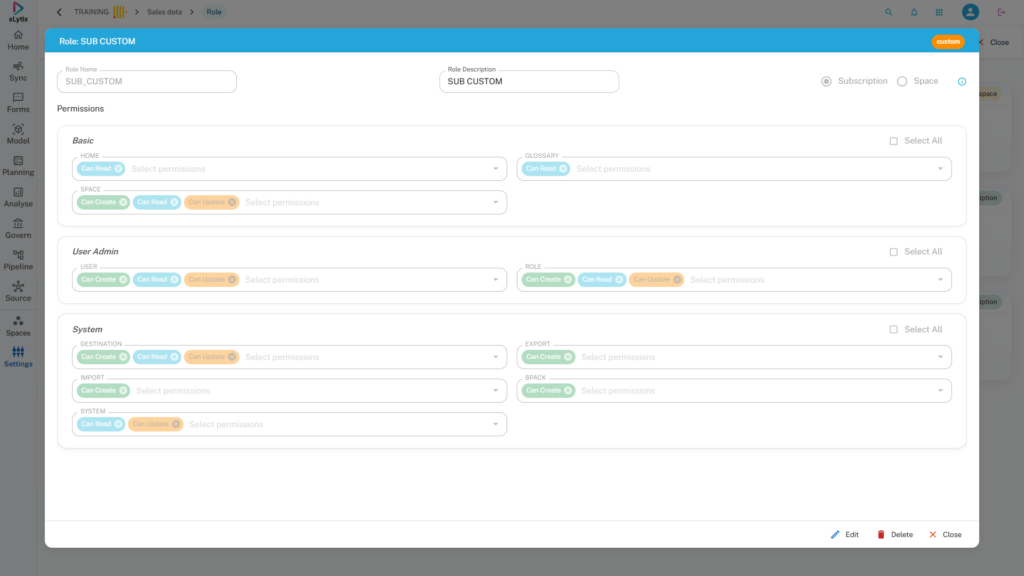
1. To edit Custom roles, on the main navigation bar on the left side of your screen, click on Settings tab and click on Roles . Select the custom role for Space or Subscription to be edited
.2. Click on Display Role button and click on Edit button. Edit the necessary parameters and click on Save button.
Delete Roles #
1. To delete Custom roles, on the main navigation bar on the left side of your screen, click on Settings tab and click on Roles. Select the custom role for Space or Subscription to be deleted.
2. Click on Display Role button and click on Delete button.
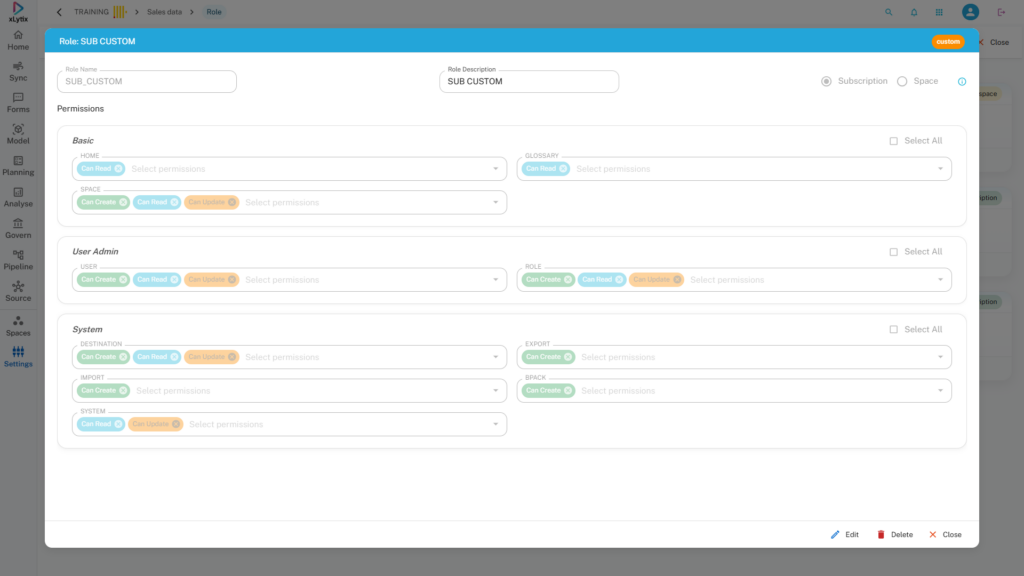
Before deleting any custom role, you need to make sure that any user has not been assigned the subsequent role.